XR components
Learn how Material 3 Expressive components adapt to extended reality devices
Overview · App bars · Dialogs · Nav bar · Nav rail · Toolbars
Note
XR guidelines are primarily intended for designers. Find what’s implemented in code in the design kit.
Extended reality (XR) introduces spatial capabilities, such as using depth to make dialogs stand out from the background. Currently, spatial dialogs are only available in full space. For home space, follow Material’s general dialog guidance.
Color & elevation
XR uses color roles to communicate the elevation of UI elements. Dialogs can use two color options: surface container high or surface container highest.
Note
Color and elevation for spatial dialogs aren’t available in Jetpack Compose yet. These need to be customized manually.
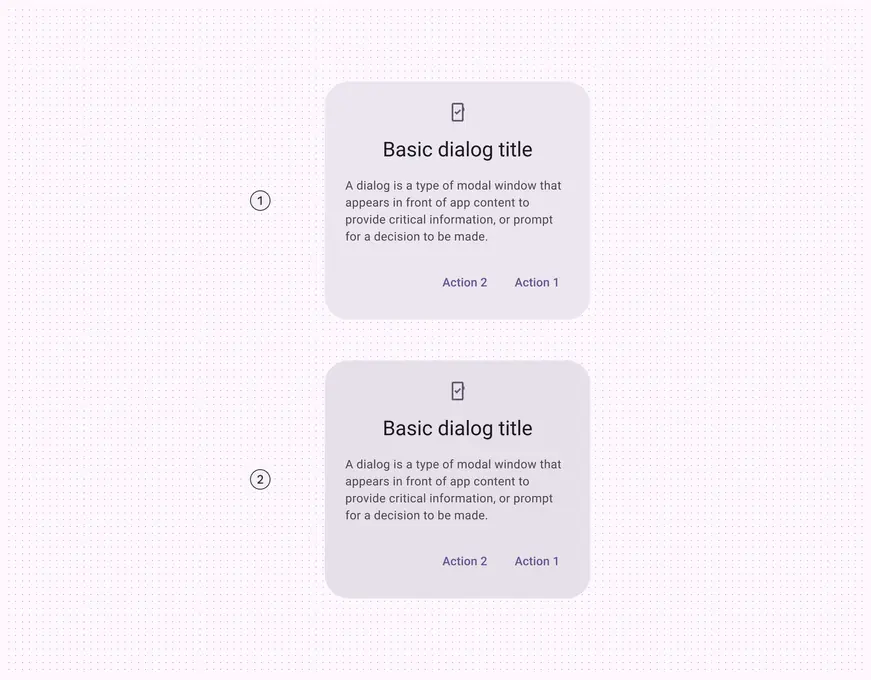
- Surface container high
- Surface container highest
For effective visual hierarchy, a dialog should be the most prominent element.
Add a scrim behind a dialog to improve its visibility. Scrims prevent other content from being selected until the dialog action is complete.
Do
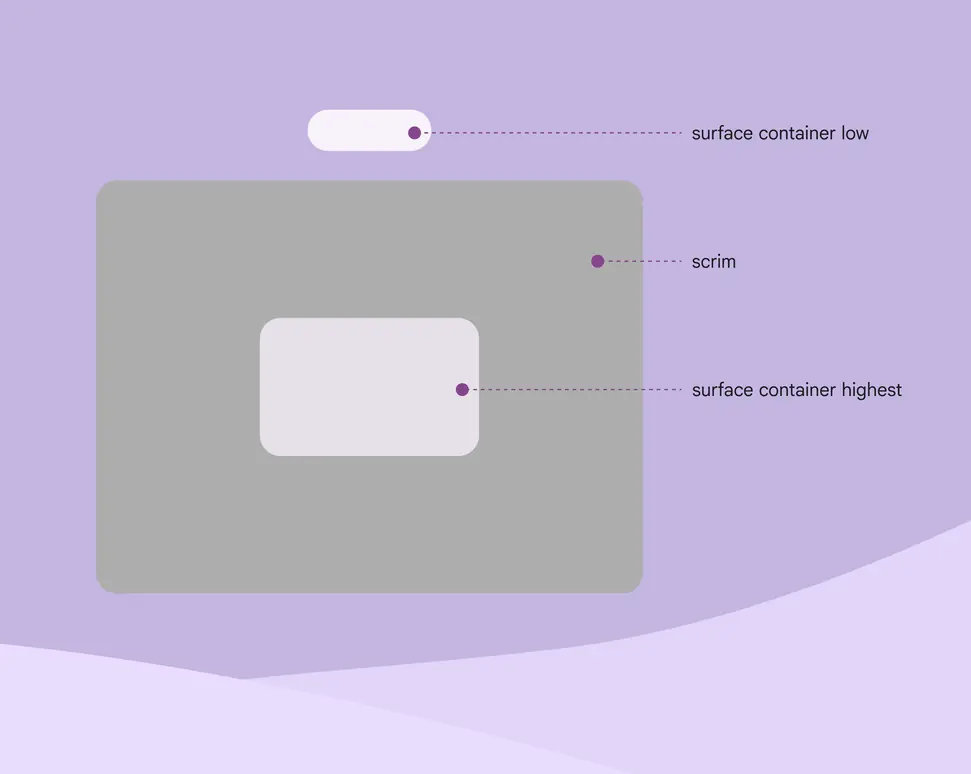
Make sure a spatial dialog’s color is higher than all other UI elements, and use a scrim
The dialog should have the highest elevation in the product.
For example, if the dialog is surface container high, don’t use surface container highest for any other elements.
Don't
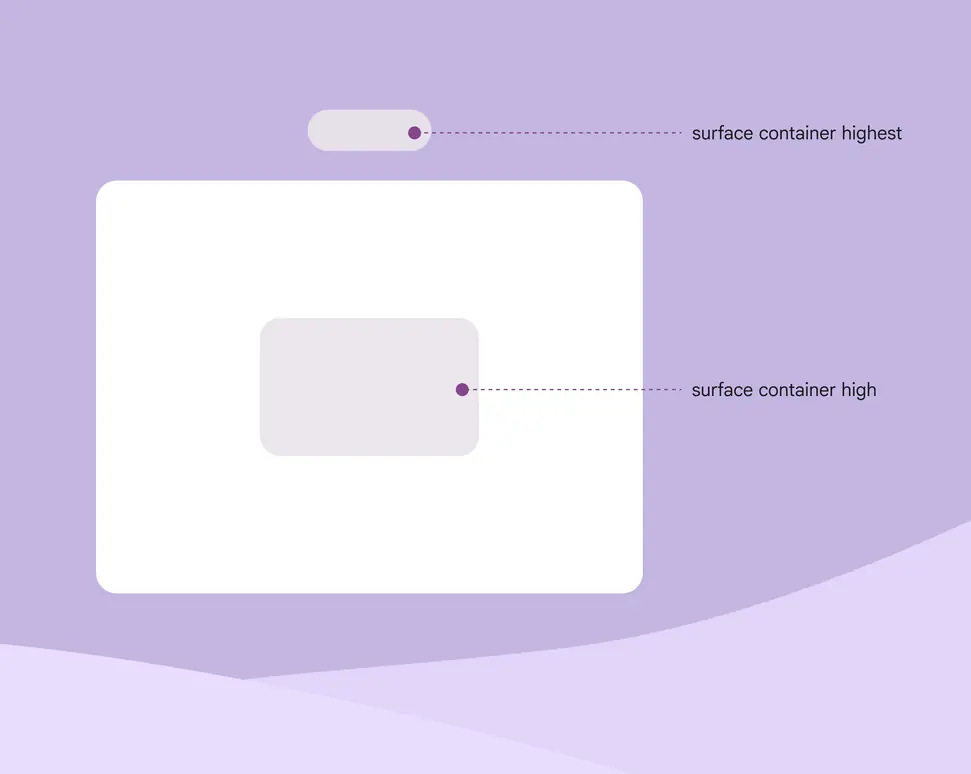
If a dialog’s color is surface container high, don’t use surface container highest for any other element
Usage
Only use basic dialogs in XR. This keeps the required action in the person’s field of view.
Do
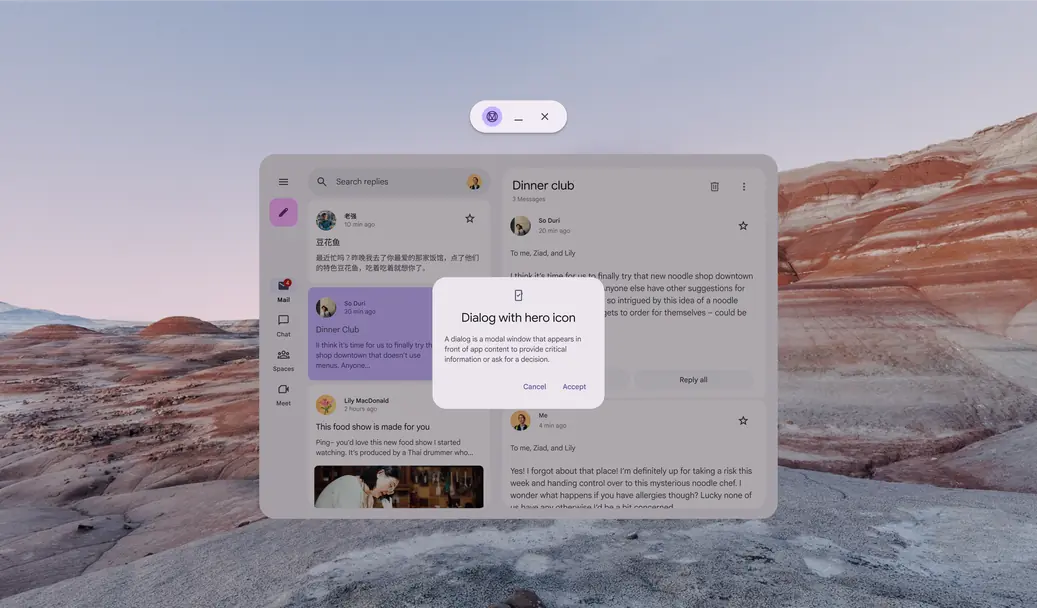
A basic dialog elevated above an app in home space
Don't
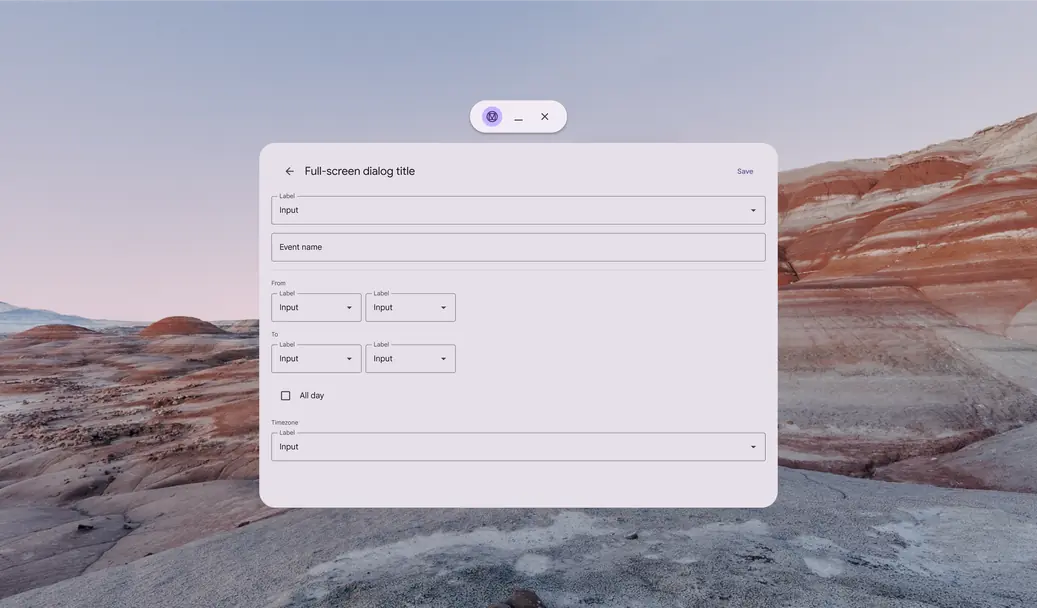
Avoid using full-screen dialogs in XR. Required actions could appear beyond a person’s field of view.
Spatial dialogs
In full space, dialogs can be elevated spatially via overrides. This helps dialogs stand out from their background in XR.
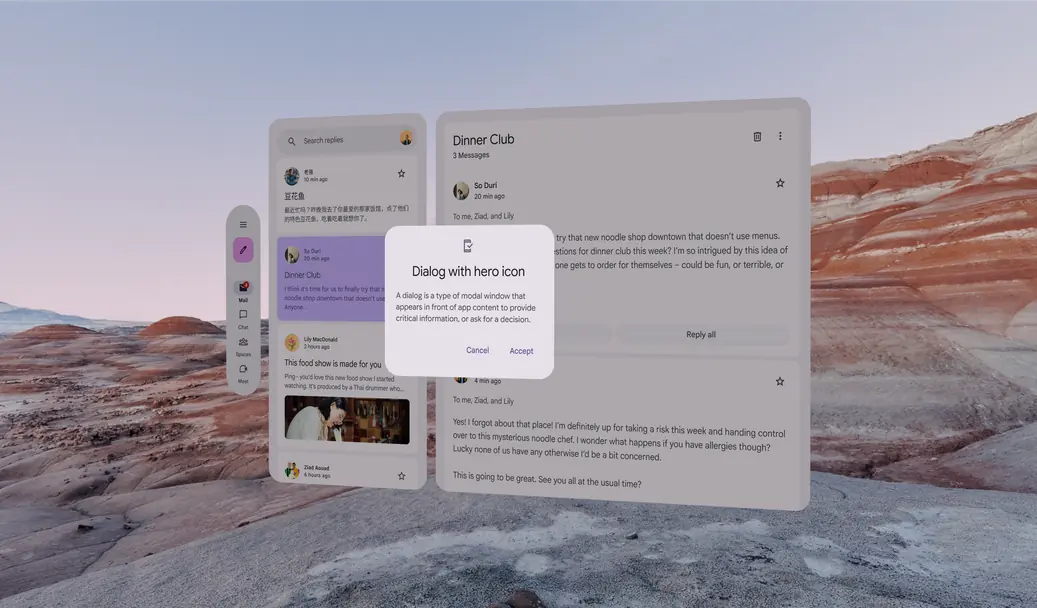
Side view of a basic dialog with spatial elevation in full space
Behavior
Effect
The spatial dialog should scale uniformly. It also fades in when appearing, and fades out when disappearing.
The dialog's scrim only fades in and out.
Front view of a spatial dialog in motion in full space
Movement
When activated, the spatial dialog rises from the app to the highest resting level on the Z-axis.
When the action is complete, it returns to a normal resting level.
The dialog's scrim stays at the app content level at all times.
To prevent motion sickness, use standard easing and long duration motion tokens.
Side view of a spatial dialog in motion in full space
Placement
Consider factors like field of view, viewing distance, and possible interactions when deciding where to place dialogs in XR.
A dialog’s placement can be adjusted to accommodate specific needs, such as improved ergonomics or right-to-left (RTL) languages.
Elevation: Highest resting level
Display spatial dialogs at the highest resting level. When setting the depth value of the highest resting level, make sure the elevated dialog is at a comfortable viewing distance from the person. More on spatial elevation
A spatial dialog moves to the highest resting level in full space
Center spatial dialogs in field of view
Spatial dialogs should be centered in a person’s field of view. If the dialog can’t track head movements, position it in the center of the app’s content.
If the dialog can track head movements, configure it with a lazy follow behavior. This keeps the dialog anchored to the center of a person’s field of view until an action is taken.
A dialog in full space stays centered in a person’s field of view
Accessibility considerations
XR accessibility guidelines are still evolving. Spatial dialogs should follow applicable Material dialog accessibility standards.