Overview
Accessible design enables users with diverse abilities to navigate, understand, and enjoy a UI
Principles · Assistive technology
Assistive technology
Assistive technology helps increase, maintain, or improve the functional capabilities of individuals with disabilities. People can live more independently by engaging with technology through devices like keyboards, screen readers, and braille displays, as well as tracking input, magnifiers, and voice input.
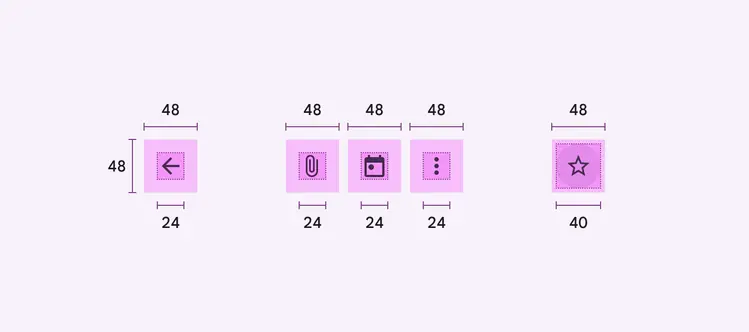
Icons are one example of interactive elements that require an understanding of different input methods and user needs. In this example the target area of the icon is identified to show how the expanded icon perimeter makes interacting with an action more accessible.
Common forms of assistive technologies
Keyboard
Hardware or software directional controllers such as keyboards, a D-pad, or trackball allow users to jump from selection to selection in a linear fashion.
Screen readers
A screen reader is a software program that uses either a braille display or reads text aloud, such as Google’s screen reader, TalkBack. People with vision impairments, experiencing difficulty reading, or who temporarily can’t read might use a screen reader. Screen readers verbalize visible content and read it aloud. Paragraph and button text, as well as hidden content like alternative text for icons and headings, are identified by the program. Content can be labeled to optimize the experience for those who use screen readers or experience a text-only version of your UI.
Switch input
Switches scan the items on your screen, highlighting each item in turn, until you make a selection. Switch Access lets you interact with your Android device using one or more switches instead of the touchscreen.