---
url: /foundations/xr/components/dialogs.md
description: Learn how Material 3 Expressive components adapt to extended reality devices
---
# XR components
Learn how Material 3 Expressive components adapt to extended reality devices
[Overview](overview.md) · [App bars](app-bars.md) · **Dialogs** · [Nav bar](nav-bar.md) · [Nav rail](nav-rail.md) · [Toolbars](toolbars.md)
::: info Note
XR guidelines are primarily intended for designers. Find what’s implemented in code in the [design kit](https://www.figma.com/community/file/1035203688168086460).
:::
Extended reality (XR) introduces spatial capabilities, such as using depth to make dialogs stand out from the background. Currently, [spatial dialogs](https://www.figma.com/community/file/1035203688168086460) are only available in [full space](https://developer.android.com/design/ui/xr/guides/foundations#modes "Full space is Android XR’s immersive mode and supports spatial components."). For [home space](https://developer.android.com/design/ui/xr/guides/foundations#modes "Home space is compatible with mobile and large screen apps, but doesn’t support spatial components."), follow Material’s general [dialog guidance](../../../components/dialogs/overview.md).
## Color & elevation
XR uses [color roles](../../../styles/color/roles.md "Material has 26 standard color roles organized into six groups: primary, secondary, tertiary, error, surface, and outline.") to communicate the elevation of UI elements. Dialogs can use two color options: **surface container high** or **surface container highest**.
::: info Note
Color and elevation for spatial dialogs aren’t available in Jetpack Compose yet. These need to be customized manually.
:::
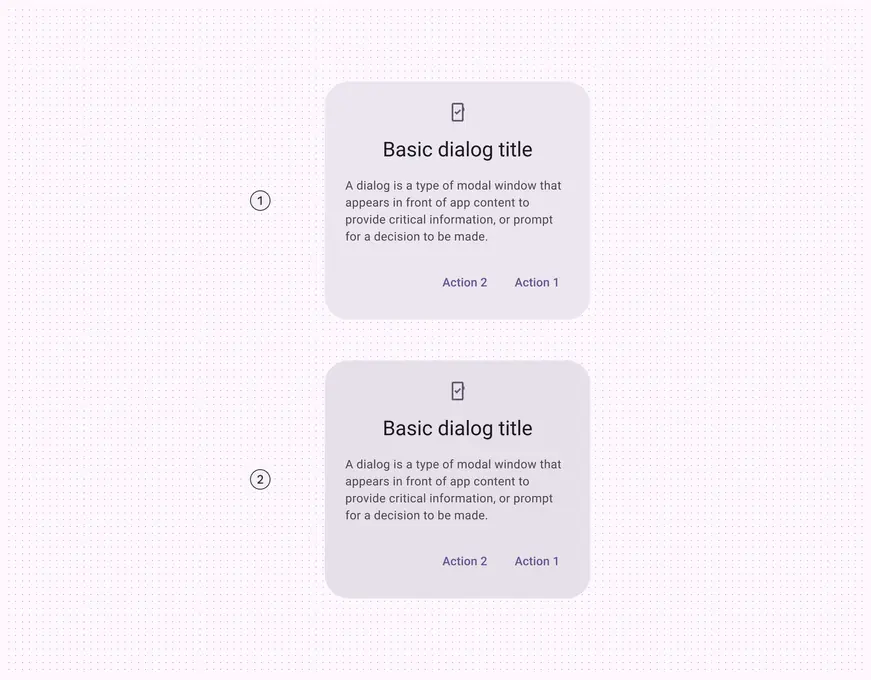
1. Surface container high
2. Surface container highest
For effective visual hierarchy, a dialog should be the most prominent element.
Add a scrim behind a dialog to improve its visibility. Scrims prevent other content from being selected until the dialog action is complete.
::: tip Do
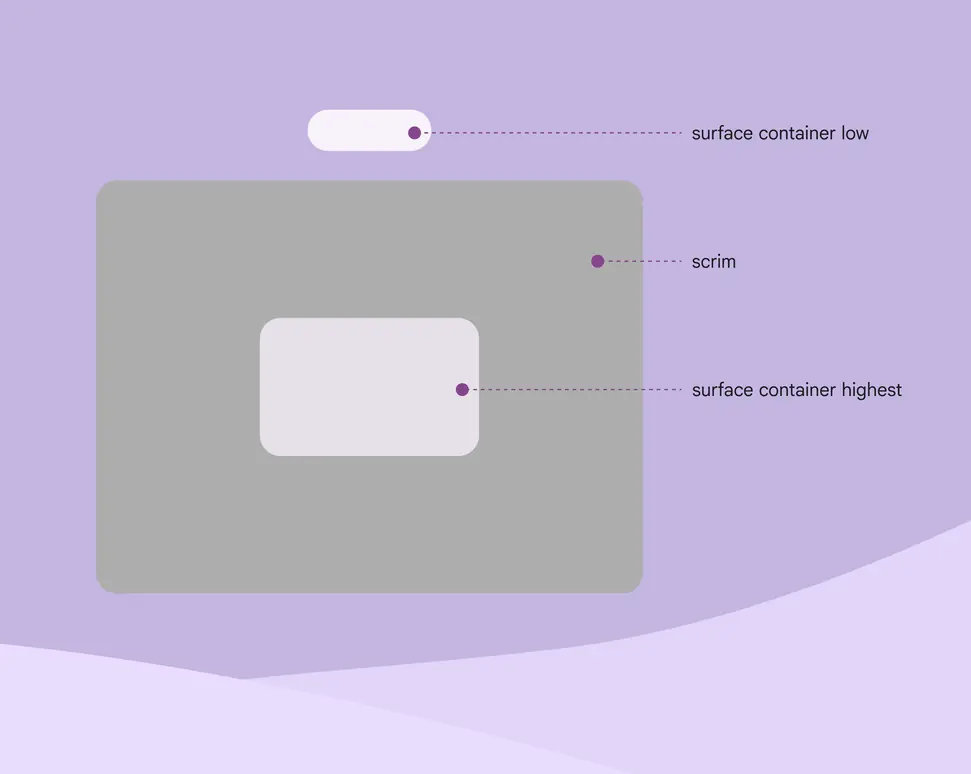
Make sure a spatial dialog’s color is higher than all other UI elements, and use a scrim
:::
The dialog should have the highest elevation in the product.
For example, if the dialog is **surface container high**, don’t use **surface container highest** for any other elements.
::: danger Don't
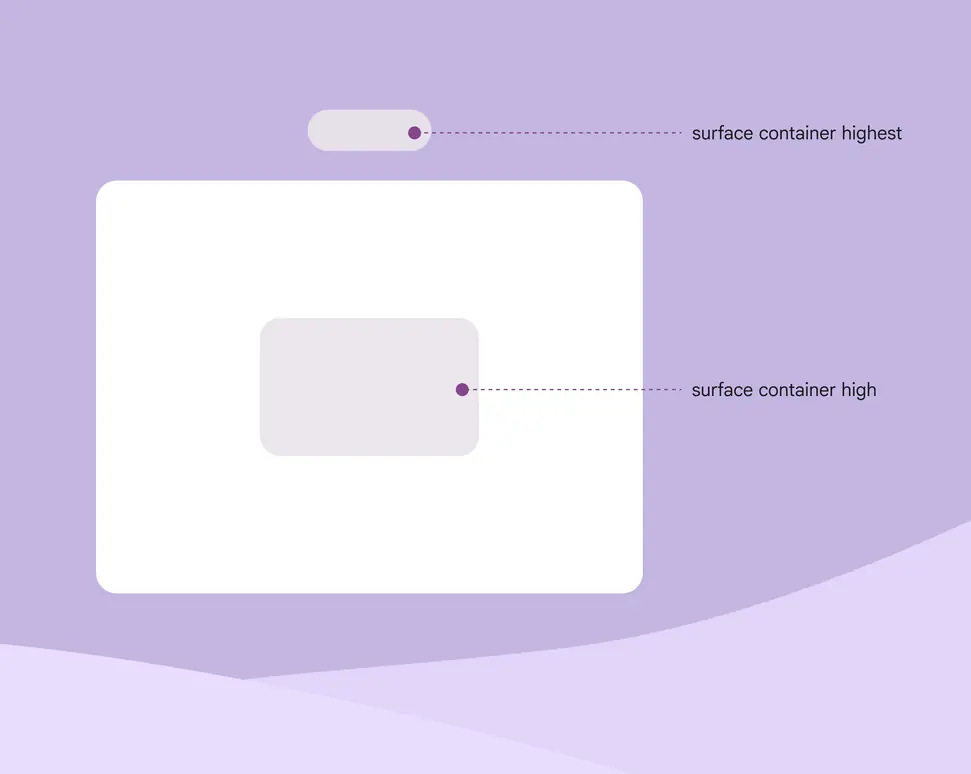
If a dialog’s color is **surface container high**, don’t use **surface container highest** for any other element
:::
## Usage
Only use [basic dialogs](../../../components/dialogs/guidelines.md#97ac3858-3932-4084-ae8e-73e42b7cb752) in XR. This keeps the required action in the person’s [field of view](https://developer.android.com/design/ui/xr/guides/spatial-ui#where-place).
::: tip Do
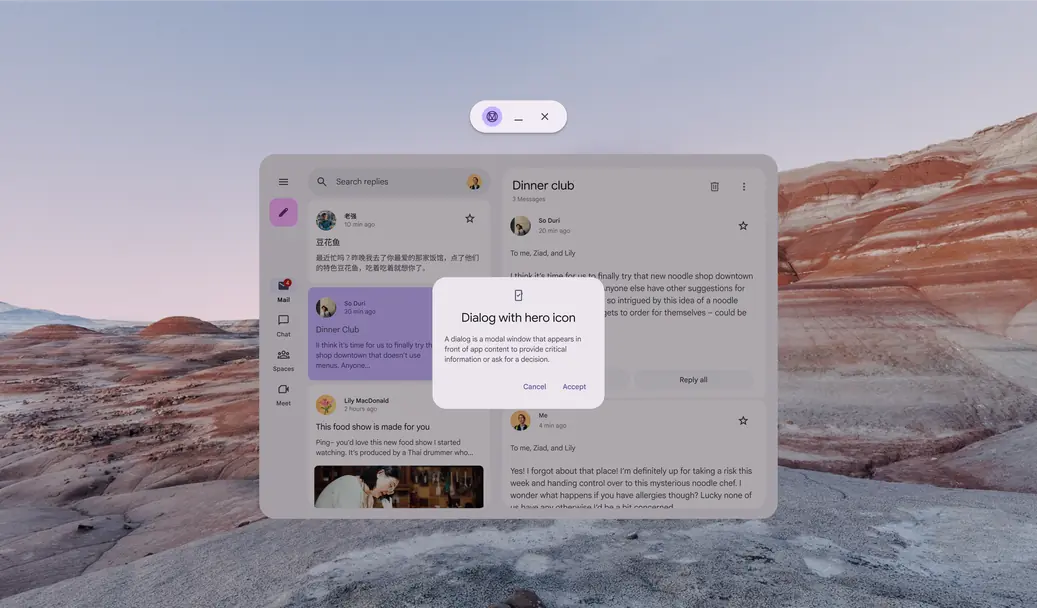
A basic dialog elevated above an app in home space
:::
::: danger Don't
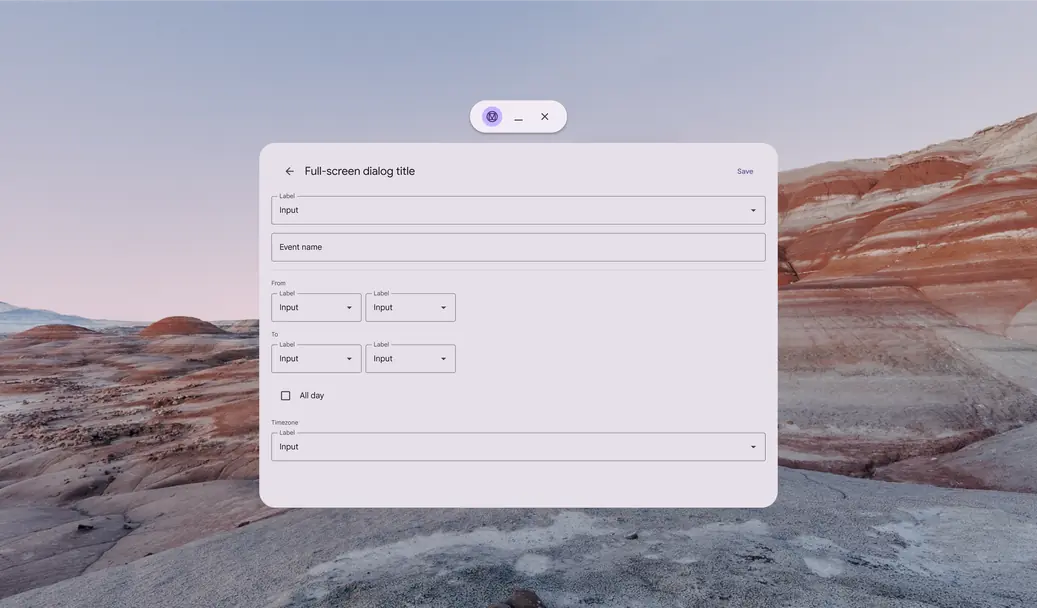
Avoid using full-screen dialogs in XR. Required actions could appear beyond a person’s field of view.
:::
## Spatial dialogs
In [full space](https://developer.android.com/design/ui/xr/guides/foundations#modes "Full space is Android XR’s immersive mode and supports spatial components."), dialogs can be [elevated spatially](https://developer.android.com/design/ui/xr/guides/spatial-ui#spatial-elevation "Spatial elevation displays a component above an app on the Z-axis.") via [overrides](https://developer.android.com/develop/xr/jetpack-xr-sdk/material-design#use-enablexrcomponentoverrides). This helps dialogs stand out from their background in XR.
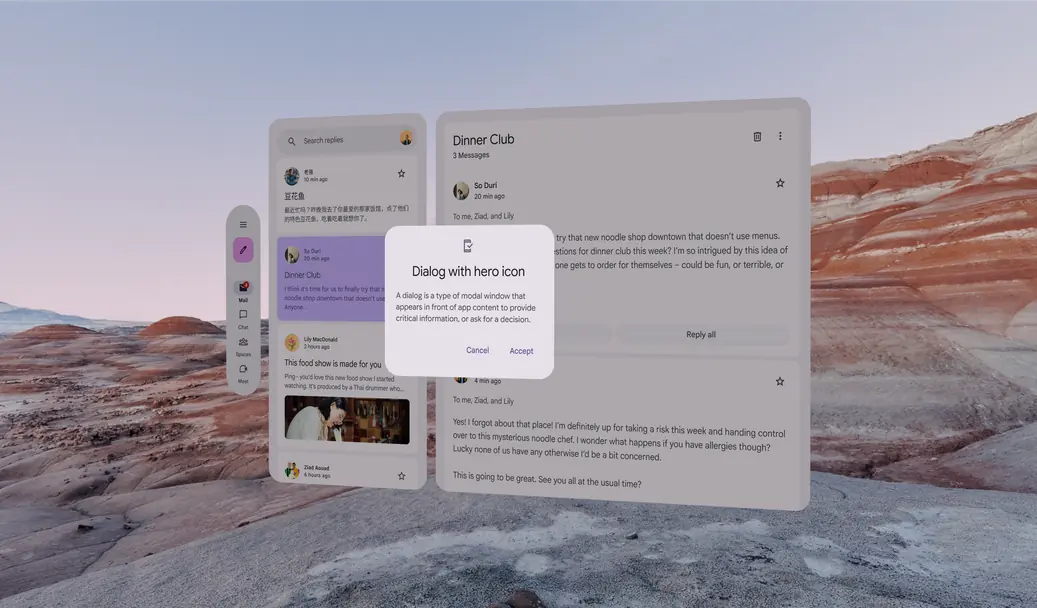
Side view of a basic dialog with spatial elevation in full space
## Behavior
### Effect
The spatial dialog should scale uniformly. It also fades in when appearing, and fades out when disappearing.
The dialog's scrim only fades in and out.
Front view of a spatial dialog in motion in full space
### Movement
When activated, the spatial dialog rises from the app to the highest resting level on the Z-axis.
When the action is complete, it returns to a normal resting level.
The dialog's scrim stays at the app content level at all times.
To prevent motion sickness, use [standard easing](../../../styles/motion/easing-and-duration/tokens-specs.md#601d5552-a6e6-4d74-9886-ff8f24b9ec35) and [long duration](../../../styles/motion/easing-and-duration/tokens-specs.md#48bf653e-46f9-48f5-87e0-eaf8ea3fe716) motion tokens.
Side view of a spatial dialog in motion in full space
## Placement
Consider factors like field of view, viewing distance, and possible interactions when deciding where to place dialogs in XR.
A dialog’s placement can be adjusted to accommodate specific needs, such as improved ergonomics or [right-to-left (RTL) languages](../../layout/bidirectionality-rtl.md).
### Elevation: Highest resting level
Display spatial dialogs at the **highest resting level**. When setting the depth value of the highest resting level, make sure the elevated dialog is at a comfortable viewing distance from the person. [More on spatial elevation](https://developer.android.com/design/ui/xr/guides/spatial-ui#spatial-elevation)
A spatial dialog moves to the highest resting level in full space
### Center spatial dialogs in field of view
Spatial dialogs should be centered in a person’s [field of view](https://developer.android.com/design/ui/xr/guides/spatial-ui#where-place). If the dialog **can’t** track head movements, position it in the center of the app’s content.
If the dialog **can** track head movements, configure it with a lazy follow behavior. This keeps the dialog anchored to the center of a person’s field of view until an action is taken.
A dialog in full space stays centered in a person’s field of view
## Accessibility considerations
[XR accessibility](../design/accessibility.md) guidelines are still evolving. Spatial dialogs should follow applicable Material [dialog accessibility standards](../../../components/dialogs/accessibility.md).