XR components
Learn how Material 3 Expressive components adapt to extended reality devices
Overview · App bars · Dialogs · Nav bar · Nav rail · Toolbars
Note
XR guidelines are primarily intended for designers. Find what’s implemented in code in the design kit.
Extended reality (XR) interfaces have special design requirements, like showing apps in 3D space. Material has an XR app bar with custom specs and guidance. See XR developer documentation for more details.
Variants & configurations
There is one app bar orbiter. It closely aligns with the small app bar. It can be configured to be center-aligned or left-aligned.

- Center-aligned app bar
- Left-aligned app bar
Anatomy
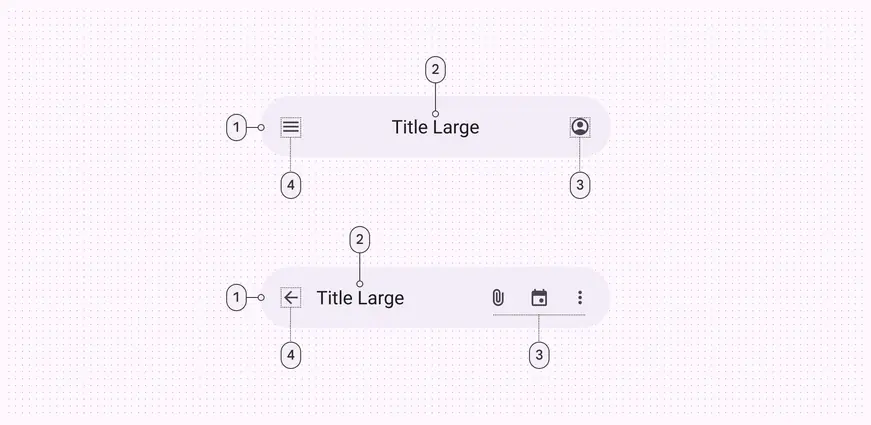
- Container
- Headline
- Trailing icons
- Leading icon
Color & elevation
XR uses color to communicate the elevation of UI elements and orbiters. With spatial elevation, the app bar displays above the spatial panel on the Z-axis. Elevated app bars can use any of these color options:
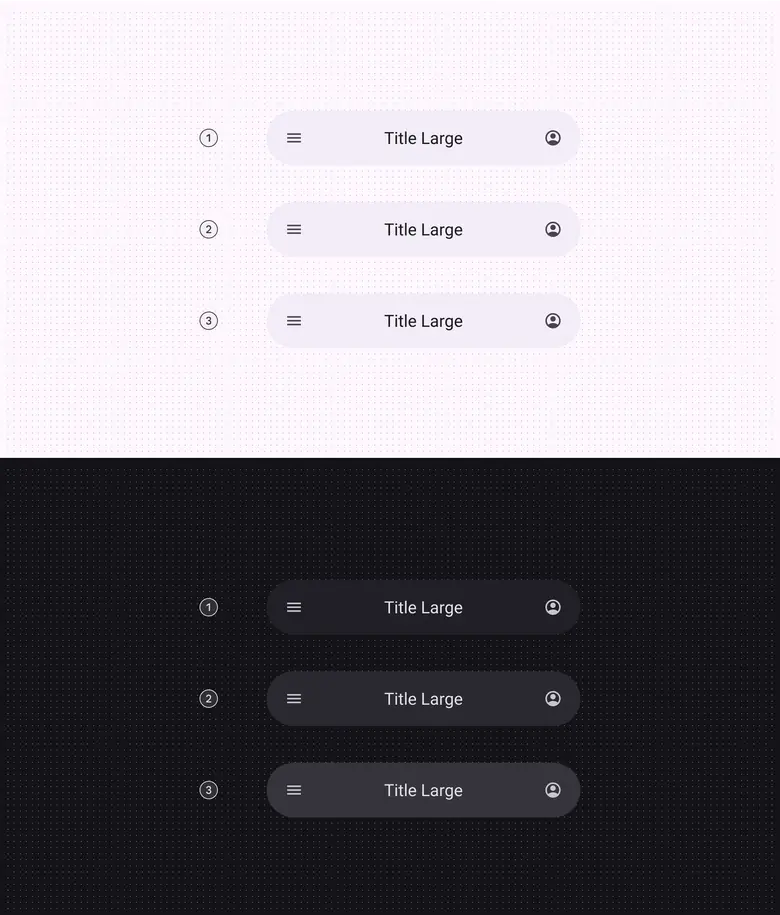
- Surface container
- Surface container high
- Surface container highest
Measurements
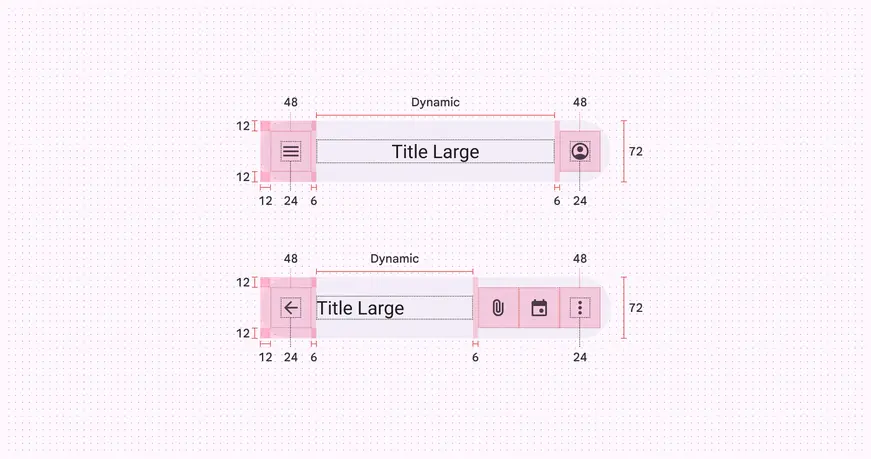
Measurements and padding for app bar orbiters
Usage
An app bar can appear in an orbiter for a more immersive experience. Currently, this spatial capability is only available in full space. In home space, use a regular app bar on the same plane as the body content to mimic a 2D experience.
An app bar’s behavior and placement changes from a 2D to a 3D experience
Behavior
Global context
When placed in global context, the orbiter is centered at the top of the app it controls.
It stays anchored to the app during layout or content changes.
This ensures navigation elements are always easy to find and use.
Global app bar orbiters should be centered and anchored to the top of the app
Local context
When placed in local context, the orbiter is centered at the top of the spatial panel it controls.
It repositions in response to layout or content changes.
Caution
Local app bar orbiters should be centered and anchored to the top of the panel. However, this is less common, so make sure that it contains actions that only affect its anchored panel.
Additional app bars
In most cases, apps should only have one app bar orbiter, placed in global context.
Caution
Limit the use of multiple app bars to rare cases when additional spatialization improves usability
Placement
Offset & inset positioning
In full space, an app bar orbiter can be positioned:
- Offset 20dp from the spatial panel
- Inset 12dp, overlapping spatial panel without obstructing content
Do
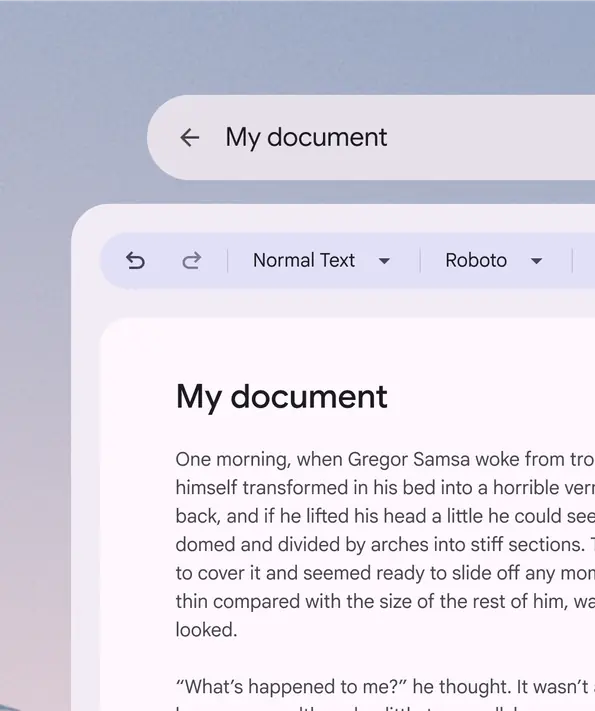
An app bar orbiter with a 20dp offset creates visual separation from the spatial panel
Don't
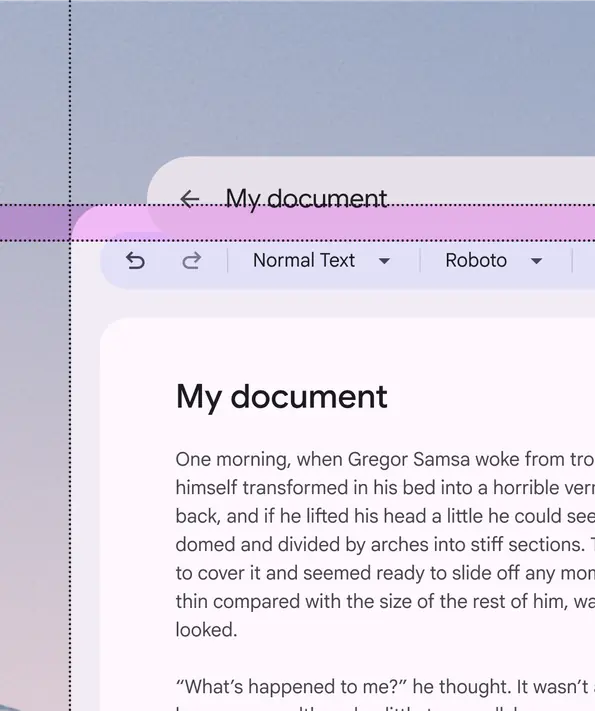
Don’t overlap the app bar orbiter and spatial panel more than 12dp
Horizontal alignment
Do
Always align the app bar orbiter within the bounds of nearby spatial panels
Don't
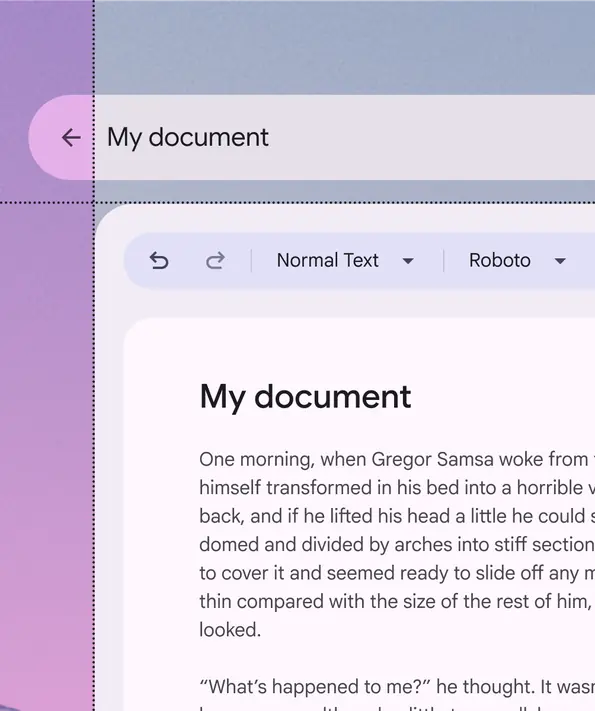
The app bar orbiter shouldn’t exceed the width of adjacent spatial panels
Spatial panel alignment
By default, app bar orbiters are center-aligned to the spatial panel. Their width and placement can be adjusted to accommodate specific user needs, such as improved ergonomics or right-to-left (RTL) languages.
App bar orbiters can align to the center, left, or right of the spatial panel
Width boundaries
An app bar orbiter’s width should adjust to stay in a person’s field of view.
This makes crucial navigation elements easy to find.
Do
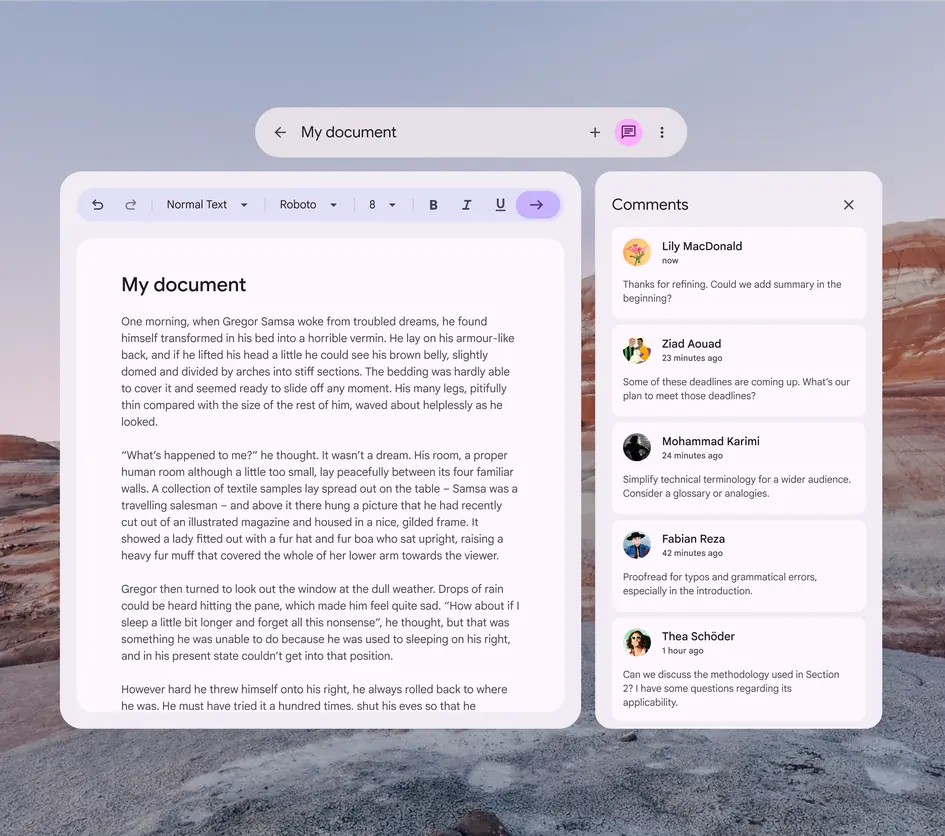
Adjust the width of the app bar orbiter to fit in a person’s field of view
It’s not recommended to increase the width of an app bar orbiter beyond a person’s natural field of view.
This creates a visual imbalance and makes it difficult to find navigation elements.
Don't
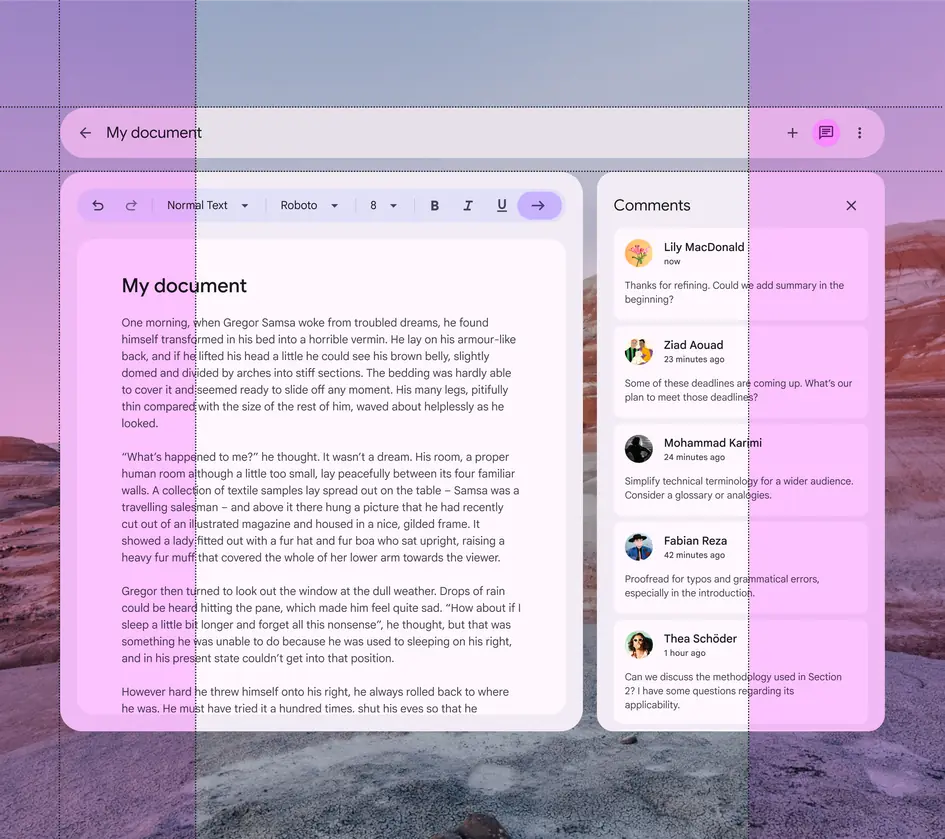
Avoid expanding the app bar orbiter beyond the adjacent panel’s width and a person’s field of view
Adaptable width
When placed in a local context, an app bar orbiter can expand to the width of its adjacent spatial panel.
Be sure the orbiter stays in a person’s field of view, and test for usability.
Caution
Use caution before expanding the app bar’s width to match its spatial panel. The orbiter may not fit in a person’s primary field of view.
Accessibility considerations
XR accessibility guidelines are still evolving. XR app bars should follow applicable Material app bar accessibility standards.